
Technology can help assisted living residents stay connected, manage appointments, enjoy entertainment, and feel more independent. The most useful devices are not always the newest ones. A phone, tablet, television, or wearable device works best when it is adjusted to the resident’s abilities, daily routines, and comfort level.
For residents in Kingston, PA, technology can also support communication during winter weather, summer storms, transportation disruptions, or temporary power and internet interruptions. A few thoughtful settings and simple safety habits can make devices easier to use.
Which devices are most useful in assisted living?
A smartphone or tablet can handle many daily needs in one place, including phone calls, video visits, calendars, medication reminders, weather alerts, and entertainment. Tablets are often easier to read because they have larger screens, while smartphones may be more convenient for carrying around.
Useful features include:
- Large text and high-contrast display settings
- Clear volume controls and amplified sound
- Voice commands for calls, reminders, and searches
- Video calling for family visits
- Emergency contacts saved at the top of the contact list
- A flashlight and weather-alert function
- A simple calendar for appointments and activities
Residents do not need to use every available feature. A device with fewer visible apps may be less confusing than a device filled with icons, notifications, and shortcuts.
How can a device be made easier to see and hear?
Most phones, tablets, televisions, and computers include accessibility settings that can improve comfort. Text size, screen brightness, contrast, captioning, and sound can usually be changed without purchasing anything new.
Try making these adjustments:
- Increase text size until messages can be read without straining.
- Turn on captions for television programs and video calls.
- Use a louder ringtone for important calls, but avoid setting the volume so high that it becomes startling.
- Choose a simple home screen with only frequently used applications.
- Turn off unnecessary notifications that interrupt meals, rest, or activities.
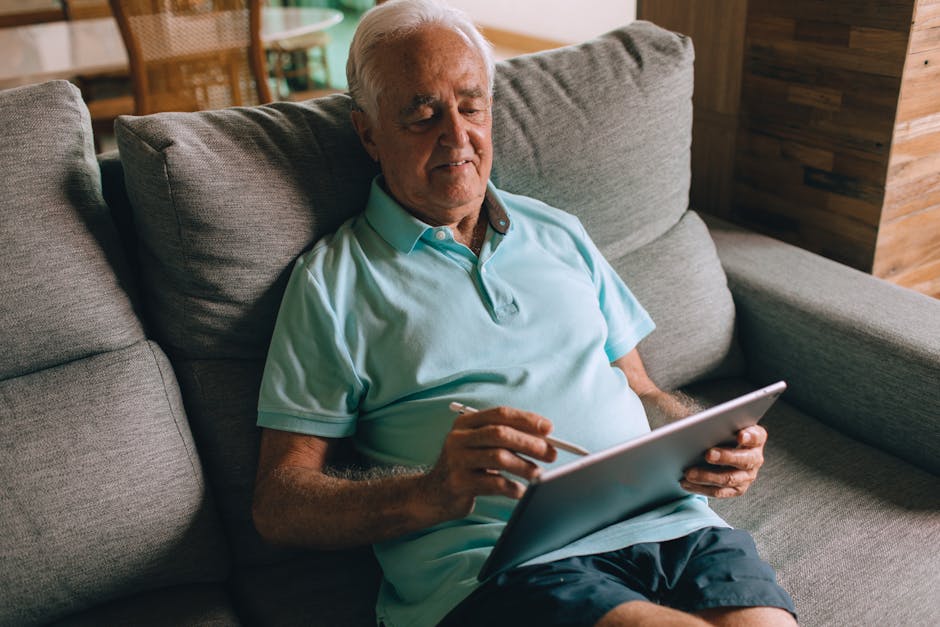
- Use a stylus or touch-screen pointer if small buttons are difficult to press.
- Keep the screen free of glare from lamps or windows.
If vision or hearing changes over time, settings should be reviewed again. A device that worked well several months ago may need a different font size or volume level now.
What is the safest way to stay in touch with family?
Video calls can provide more connection than a voice call alone, particularly when family members live far away or cannot visit regularly. A scheduled call may be easier to remember than an informal message such as “Call me sometime.”
A practical routine might include:
1. Choose one regular day and time for calls.
2. Keep the device plugged in or fully charged beforehand.
3. Place the device on a stable table rather than holding it for the entire conversation.
4. Sit in a well-lit area so the caller can see the resident clearly.
5. Use headphones only if they are comfortable and do not interfere with hearing nearby alerts.
6. Ask a trusted family member to help with updates or password recovery when necessary.
Residents should also know that a missed call does not require an immediate response. A message claiming that a relative is in trouble and needs money urgently should be verified through a separate phone call to a known number.
How can seniors recognize technology scams?
Unexpected warnings about viruses, expired subscriptions, account problems, or compromised devices are common scam tactics. A legitimate warning should not pressure someone to act immediately, share a password, send money, or allow an unknown person to control a device remotely.
Be cautious if a message or caller:
- Demands payment by gift card, cryptocurrency, wire transfer, or unusual payment method
- Asks for a password, banking information, or security code
- Claims that law enforcement, a family member, or a government office needs immediate payment
- Tells the resident not to speak with family or staff
- Provides a phone number in a frightening pop-up and insists it must be called
- Requests remote access to a computer, tablet, or phone
The safest response is to stop, close the message if possible, and ask a trusted person for help. Do not use the contact information provided in a suspicious message. If money or account information has already been shared, promptly notify the financial institution involved and document what happened.
How should passwords and account security be handled?
Passwords should be unique enough that one stolen password does not expose several accounts. Using the same password for email, banking, medical portals, and shopping accounts creates unnecessary risk.
Helpful habits include:
- Use a password manager or a written password record stored in a secure location.
- Never share a verification code sent by text unless the resident personally initiated the login.
- Turn on two-step verification for email and financial accounts when possible.
- Keep the device’s operating system and applications updated.
- Use a screen lock with a code that is not obvious to visitors.
- Sign out of accounts on shared devices.
A trusted family member may assist with account management, but the arrangement should be clear. Residents should understand who can access information, what that person may change, and how access can be removed later.
Can technology help with health care and daily routines?
Digital calendars, reminder apps, medication alarms, and patient portals can support routines, but they should supplement—not replace—directions from medical staff. A reminder may signal that it is time to take medicine, but it cannot confirm whether the correct dose was taken.
Technology may also help residents prepare for appointments by keeping a list of:
- Questions to ask
- Symptoms and dates
- Medication changes
- Home blood pressure or blood sugar readings, if requested
- Follow-up instructions
Telehealth visits can be convenient for some routine appointments, but residents should ask whether an in-person visit is needed. Before a video appointment, test the camera, microphone, internet connection, and lighting. Keep written questions nearby so important concerns are not forgotten.
What should residents do during internet or power interruptions?
Kingston experiences seasonal weather that can affect travel, communications, and electricity. Residents should keep a charged mobile phone available and know how to reach the assisted living community’s staff during an outage.
A simple backup plan may include:
- Charging phones before forecasted storms when possible
- Keeping a small battery pack available
- Writing down important phone numbers instead of relying only on digital contacts
- Knowing whether medical devices require electricity or backup power
- Keeping emergency alerts enabled
- Avoiding the use of candles near bedding, oxygen equipment, curtains, or other combustible materials
- Reporting device or outlet problems to staff rather than attempting electrical repairs
Residents who depend on powered medical equipment should discuss backup procedures with the appropriate staff before an emergency occurs.
How can residents avoid feeling overwhelmed?
Learning one task at a time is usually more effective than trying to master an entire device in one sitting. A resident might begin with answering calls, then learn video calling, and later add calendar reminders or online appointments.
It can help to keep a short instruction card near the device:
- How to answer a call
- How to increase the volume
- How to return to the home screen
- Who to call for assistance
- What to do if a suspicious message appears
Technology should reduce stress rather than create it. Residents are allowed to ignore features they do not need, ask for instructions to be repeated, and choose a simpler method when a digital option becomes confusing.